Step 1: Open Bundle sets
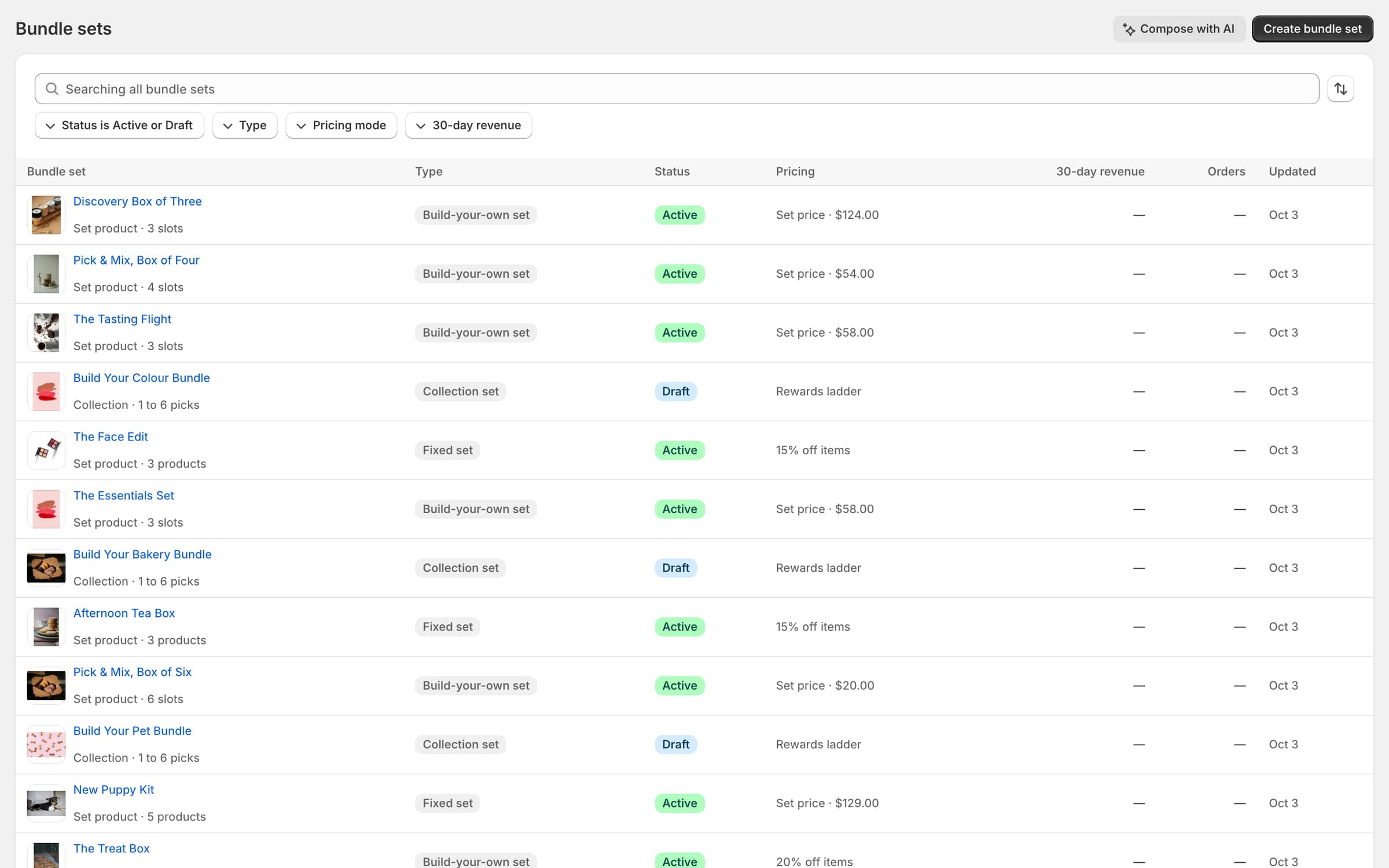
In Luxe, open Bundle sets and select Create bundle set.
Step 2: Start from a template
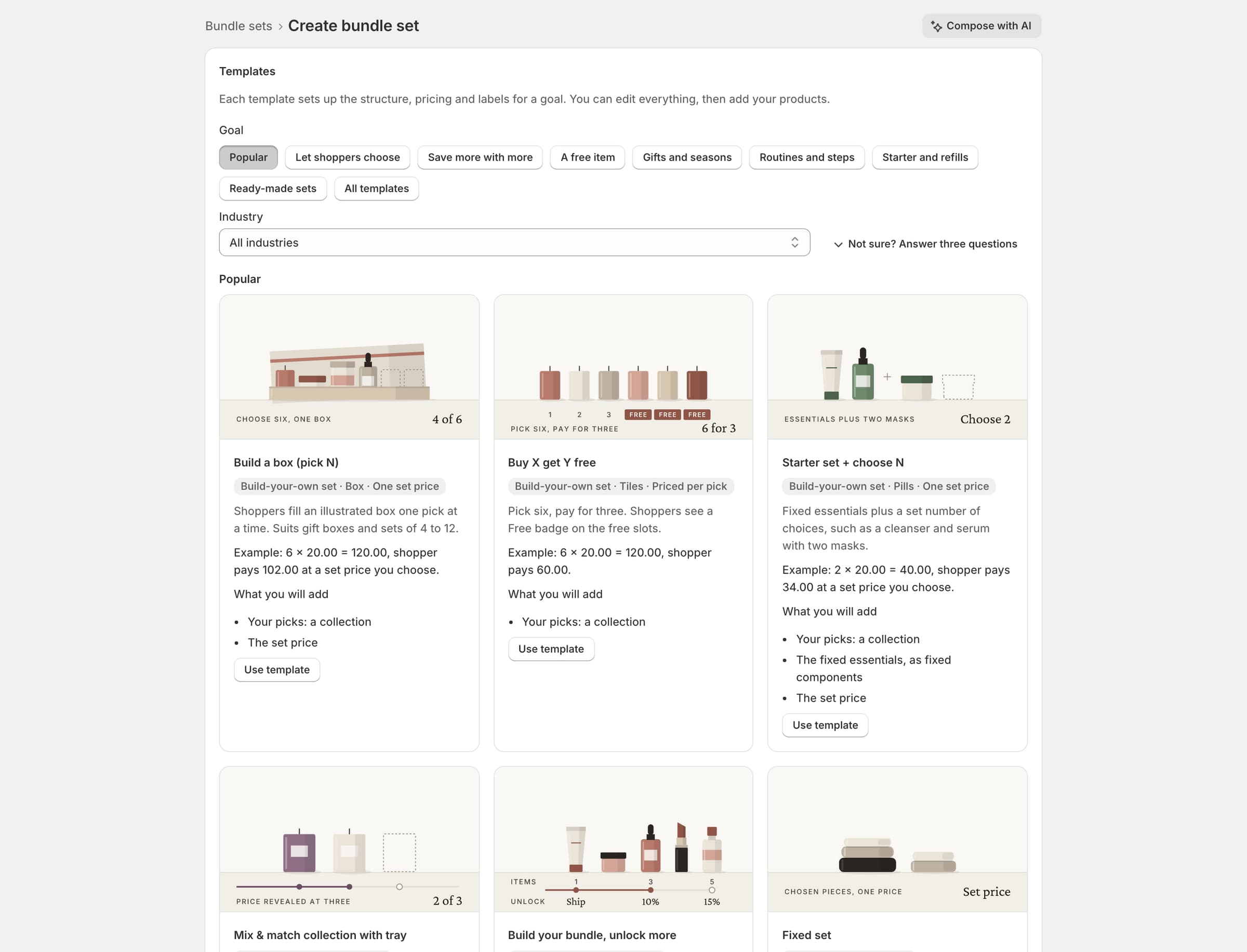
Choose a template under Popular, such as Build a box, pick a goal, or filter by Industry. Each template shows a storefront preview. Start from scratch works too.
Kettlerow starts from Brew set: dripper, filters and 2 coffees (Industry: Coffee and tea): a coffee set in the Box layout at one set price.
Step 3: Choose the set product
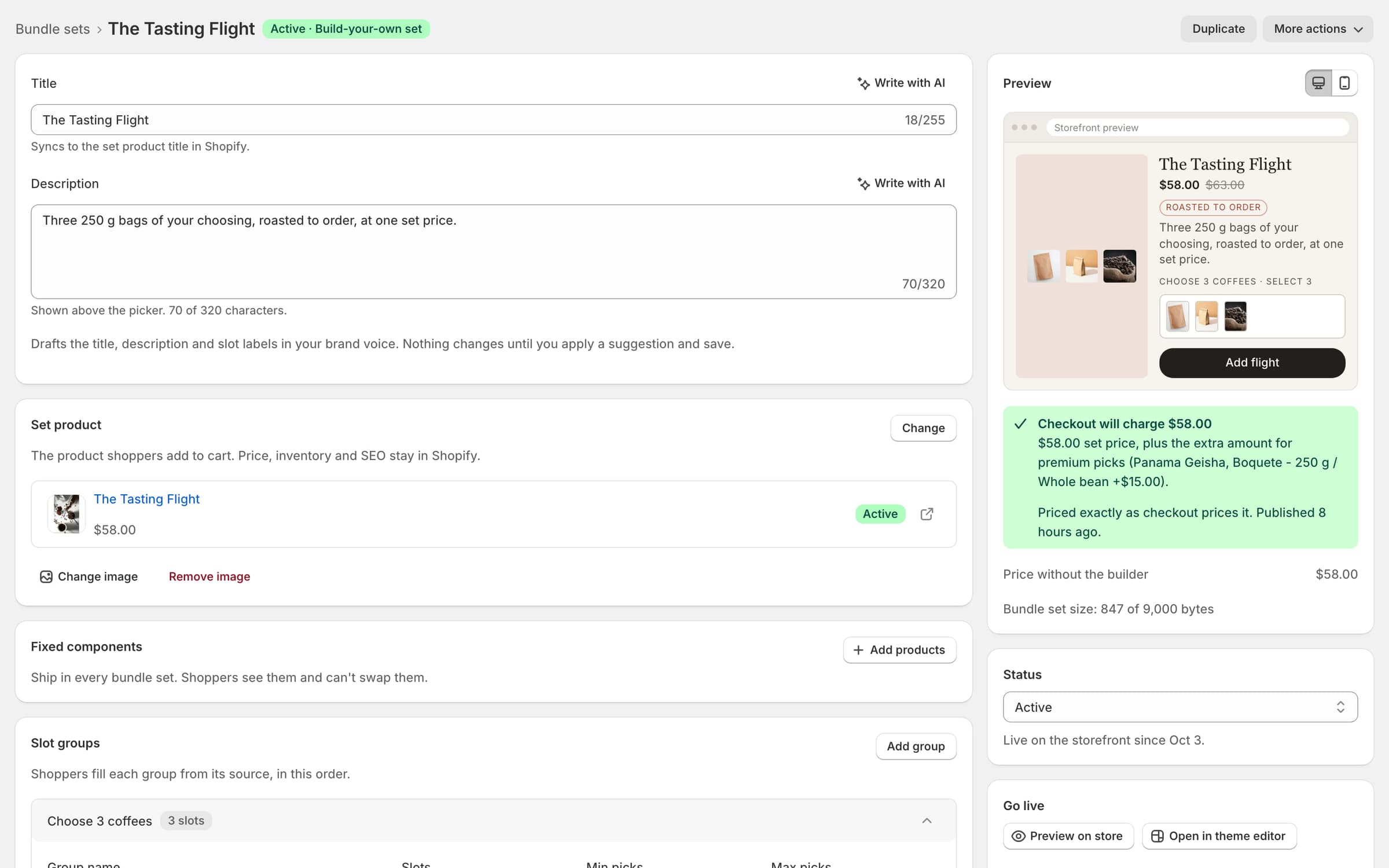
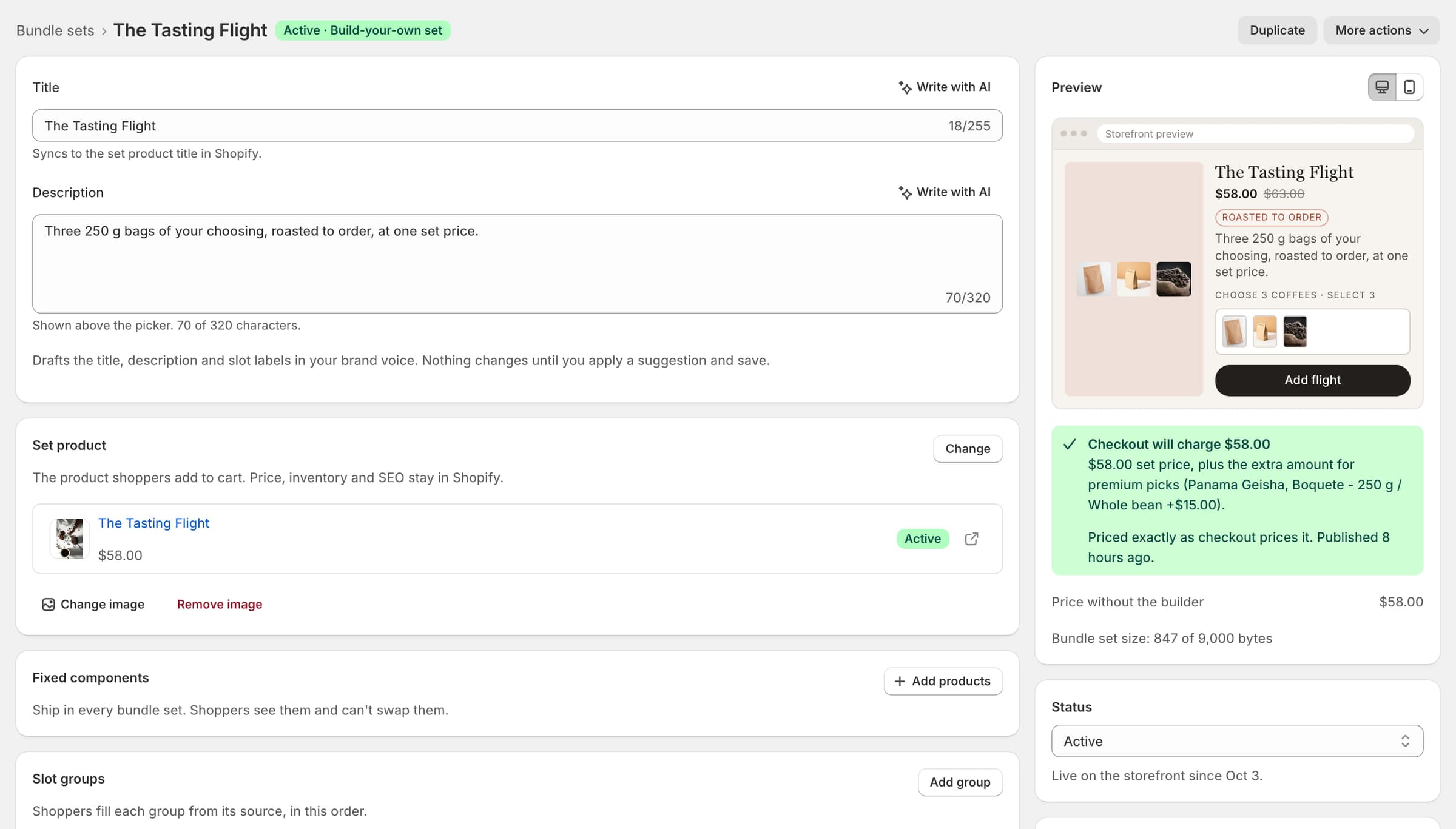
Under Set product, pick an existing product or select Create set product. Shoppers add this product to cart; Luxe expands it into the chosen items at checkout.
It must be a normal product: not a Shopify bundle, and with no subscription or other purchase option. Kettlerow's is The Tasting Flight, at $58.

Step 4: Add a slot group
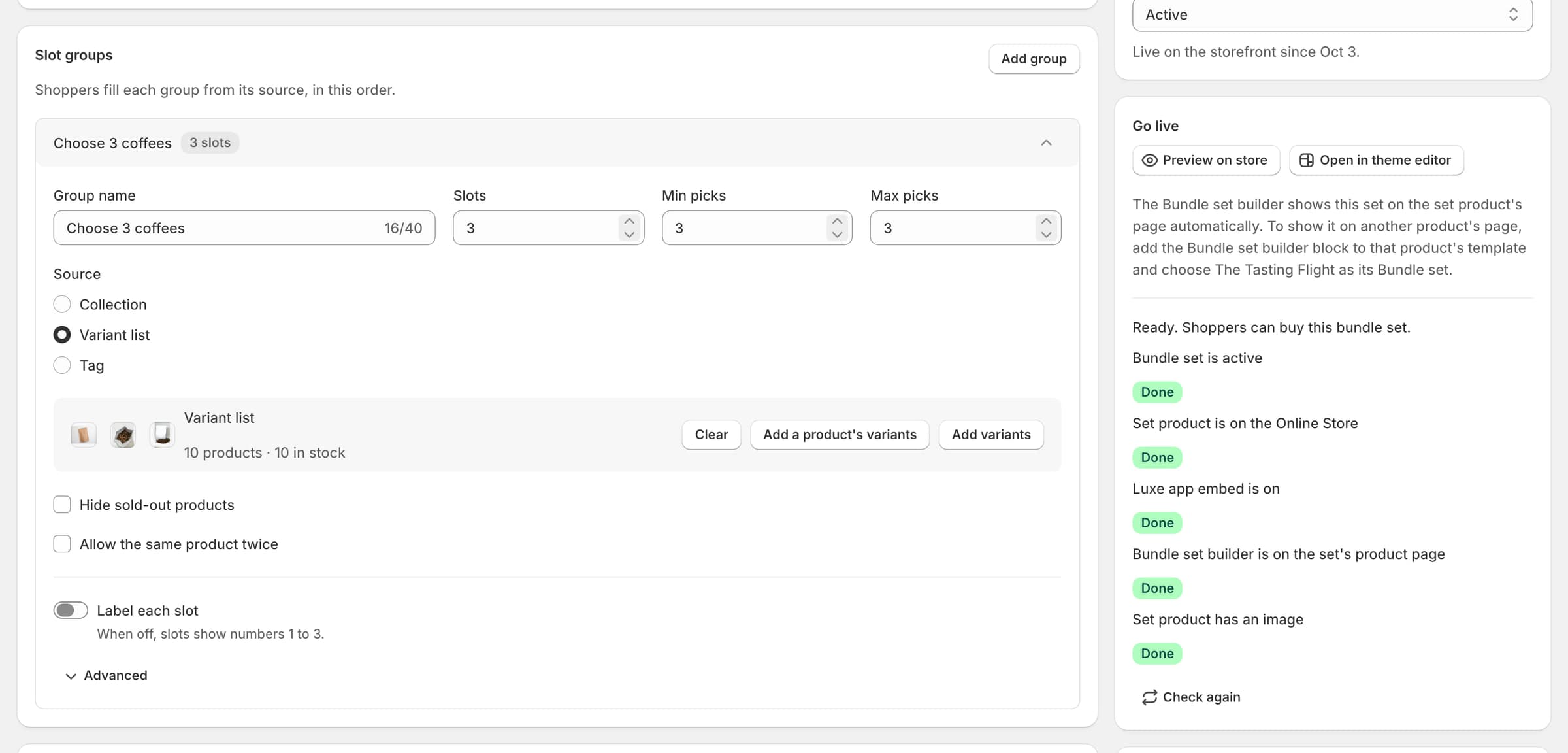
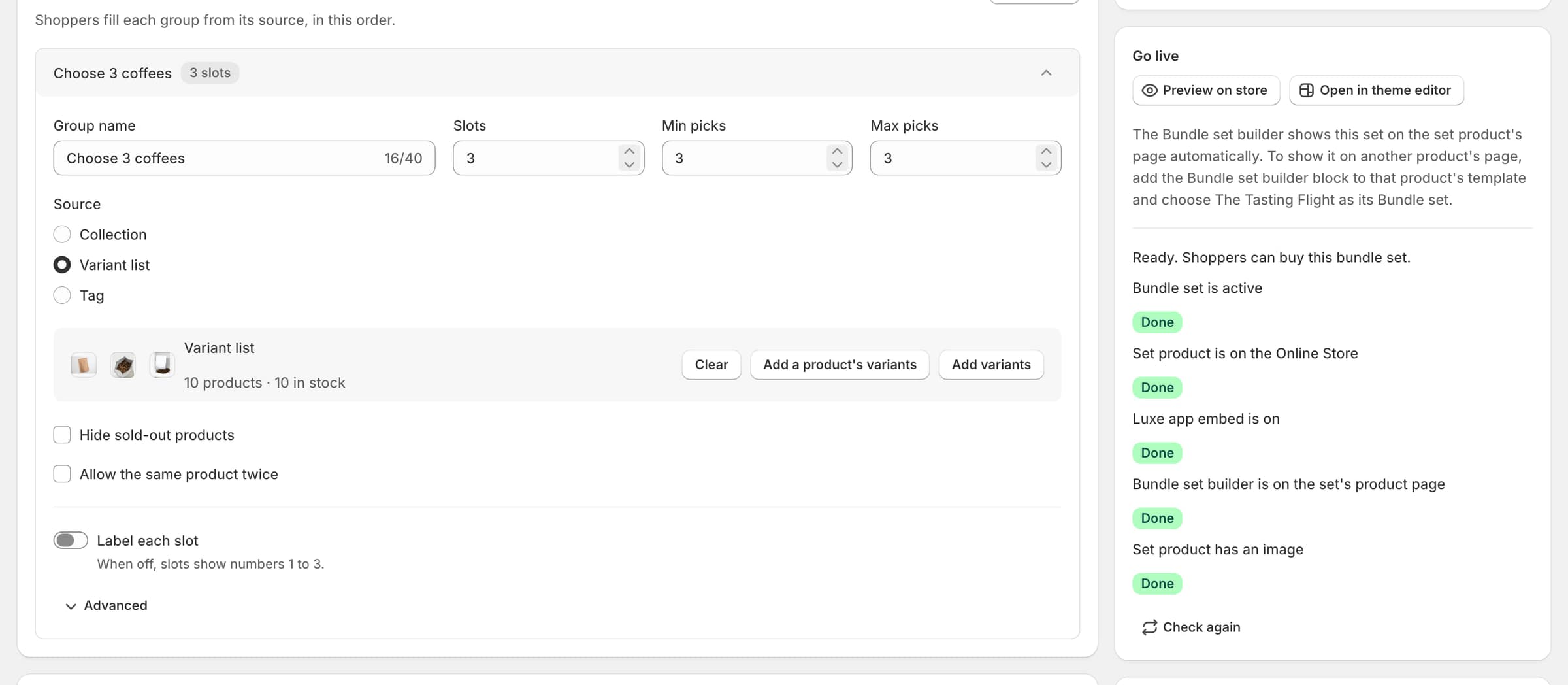
Name the group, here Choose 3 coffees. Set the number of Slots, Min picks and Max picks, and choose the Source: a collection, a list of variants or a tag.
Kettlerow lists ten coffees, each the 250 g whole-bean bag, for three slots, with no coffee twice. Turn on Label each slot when every slot needs its own name.
Step 5: Set the price
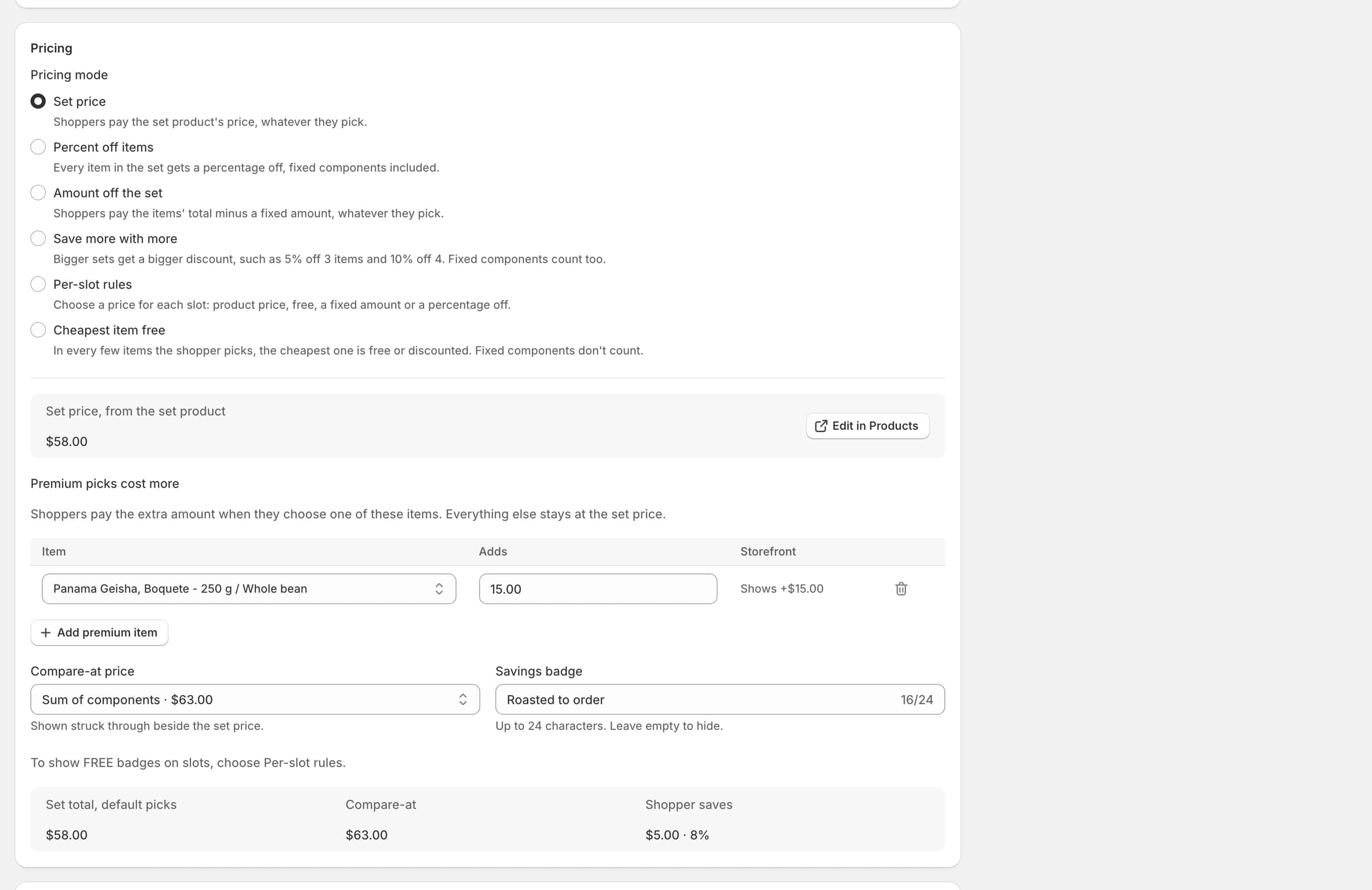
In Pricing mode, choose Set price: the set costs $58 whatever is picked. Turn on Premium picks cost more to add an amount for named items: Panama Geisha, Boquete adds $15.
Set the Compare-at price to the sum of the items, so the builder shows the Value and the saving, and turn on the Savings badge if you like. Other modes: Percent off items, Amount off the set, Save more with more, Per-slot rules and Cheapest item free.
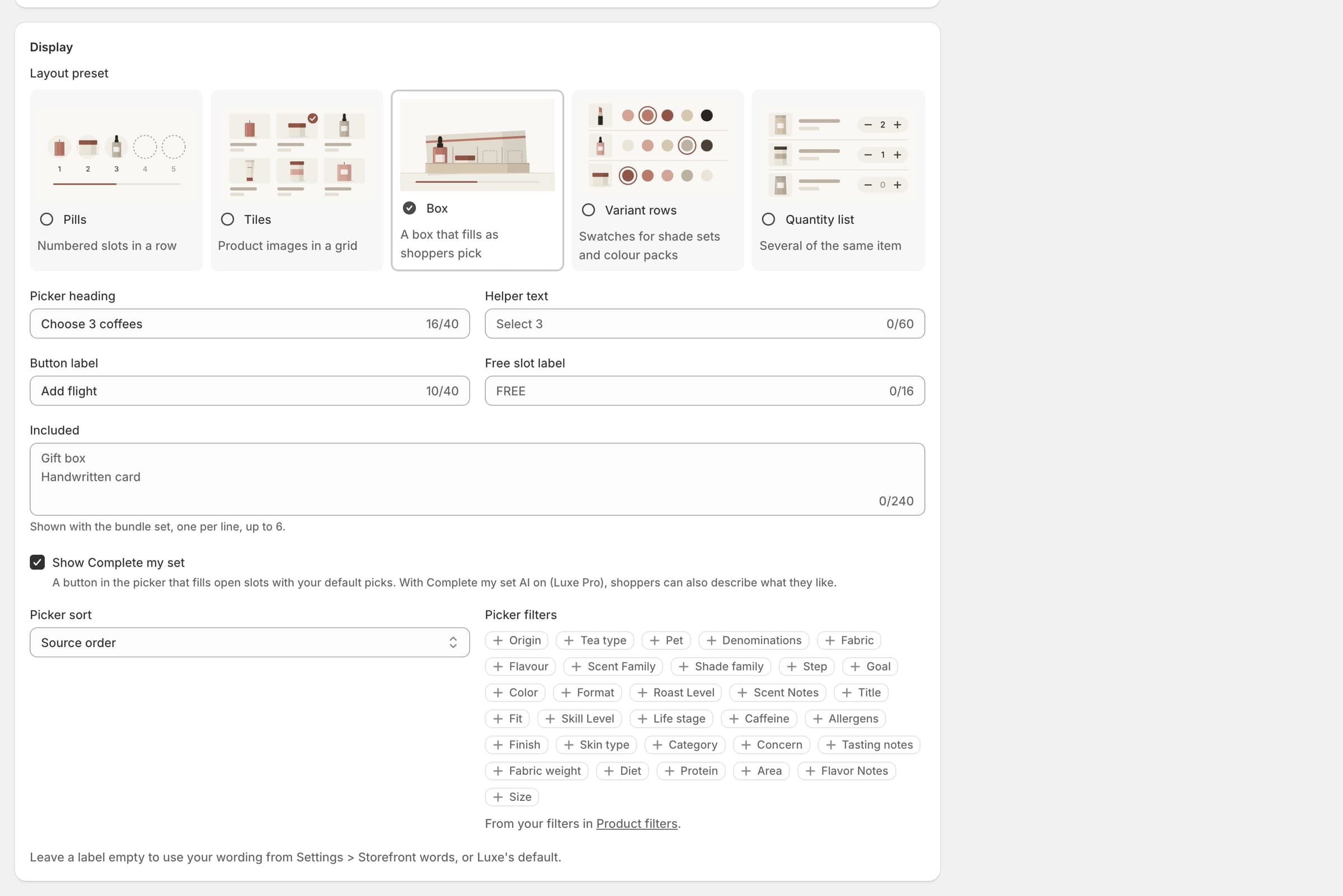
Step 6: Choose a layout
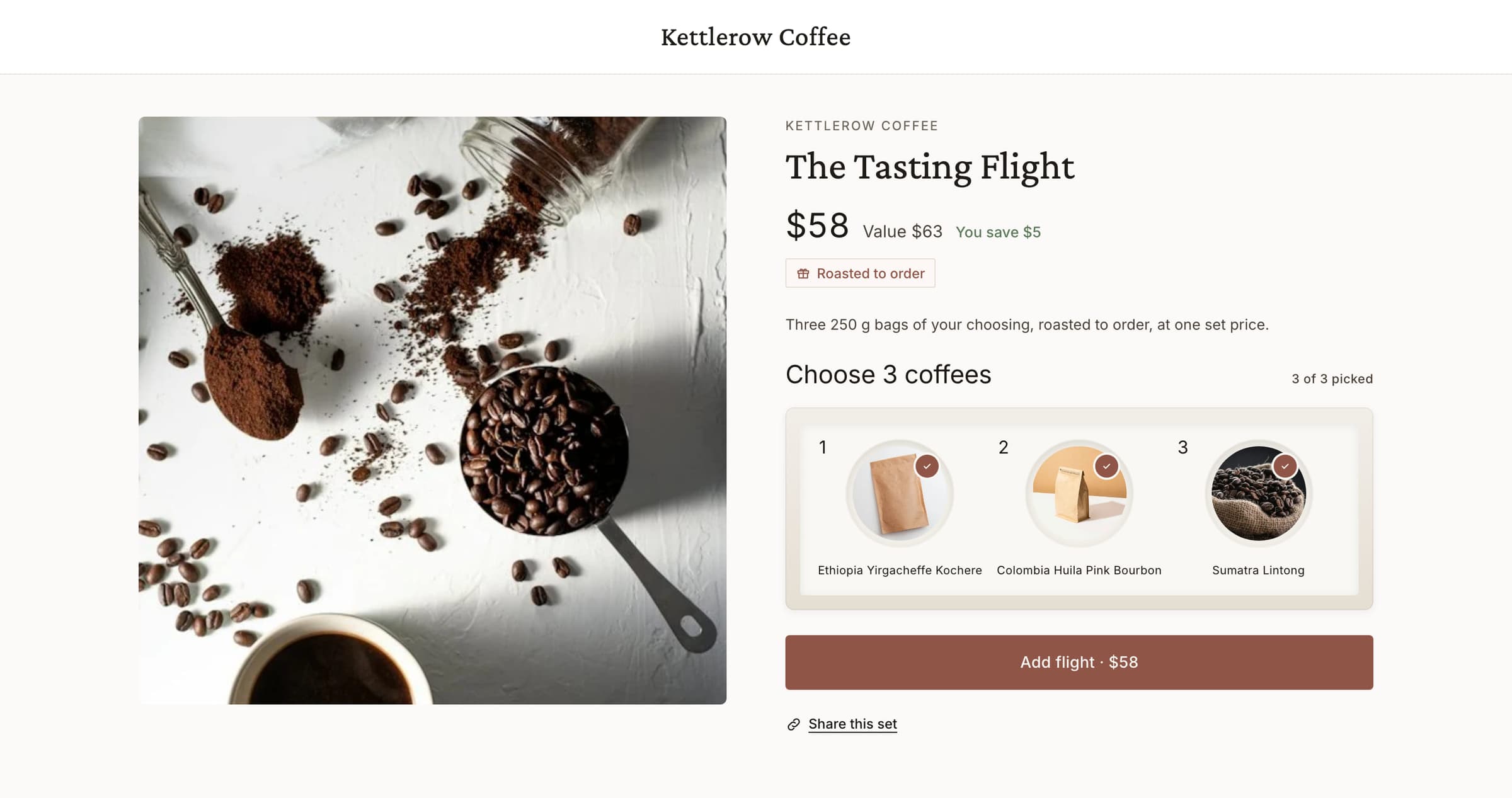
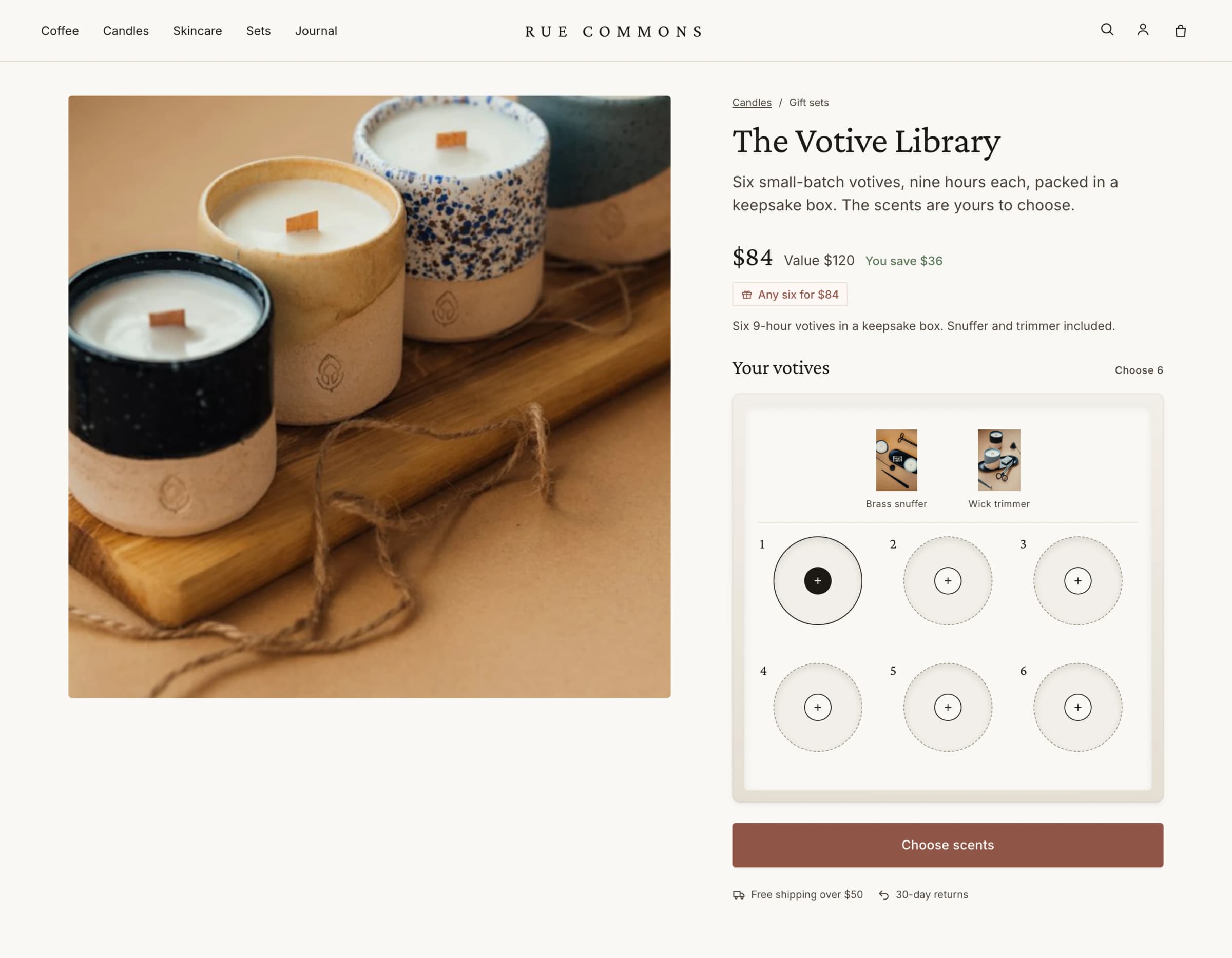
In Display, pick a layout: Tiles (the default), Pills, Box, Variant rows or Quantity list. Kettlerow uses Box, which fills as the coffees are picked.
Leave Show Complete my set on: shoppers fill the open slots in one tap, with picks labelled Suggested.
Step 7: Check the Preview, then go Active
The Preview shows what checkout will charge, the Value, and the agent and no-JS price: the set product's price, paid by shoppers who do not choose. If they differ, one button in the Preview aligns them.
Set Status to Active and save. Luxe publishes the set product to your Online Store; it never publishes anything else.
Step 8: Put it on your store
In Go live, select Add to theme. The theme editor opens on the set's product page with the Bundle set builder block added. Save there.
Back in Luxe, select Check again. Every line reads Done once the set is active, its product is on the Online Store, the app embed is on and the block is on the page. Preview on store works even while the product is a draft.
What shoppers see
Shoppers fill the three slots on the product page, see one price for the set and add it as one line. The picker filters by your product filters, such as roast or origin.
Check it before you share it
Open the product page, fill the slots, add the set to cart and go to checkout: the total matches the builder. Place a test order with Shopify's Bogus Gateway if you like. Test orders show under Billing and are never billed.