Suggest filters
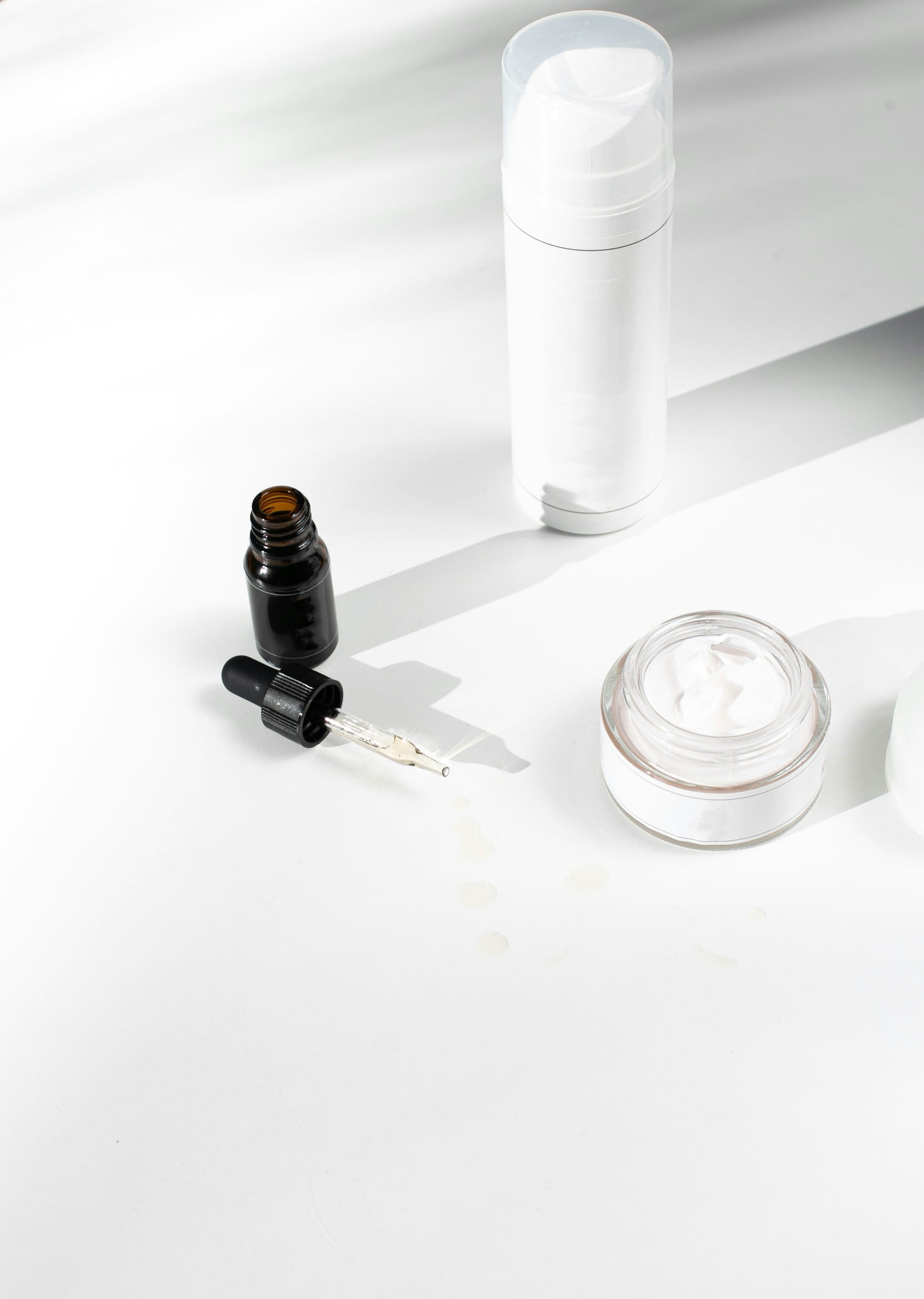
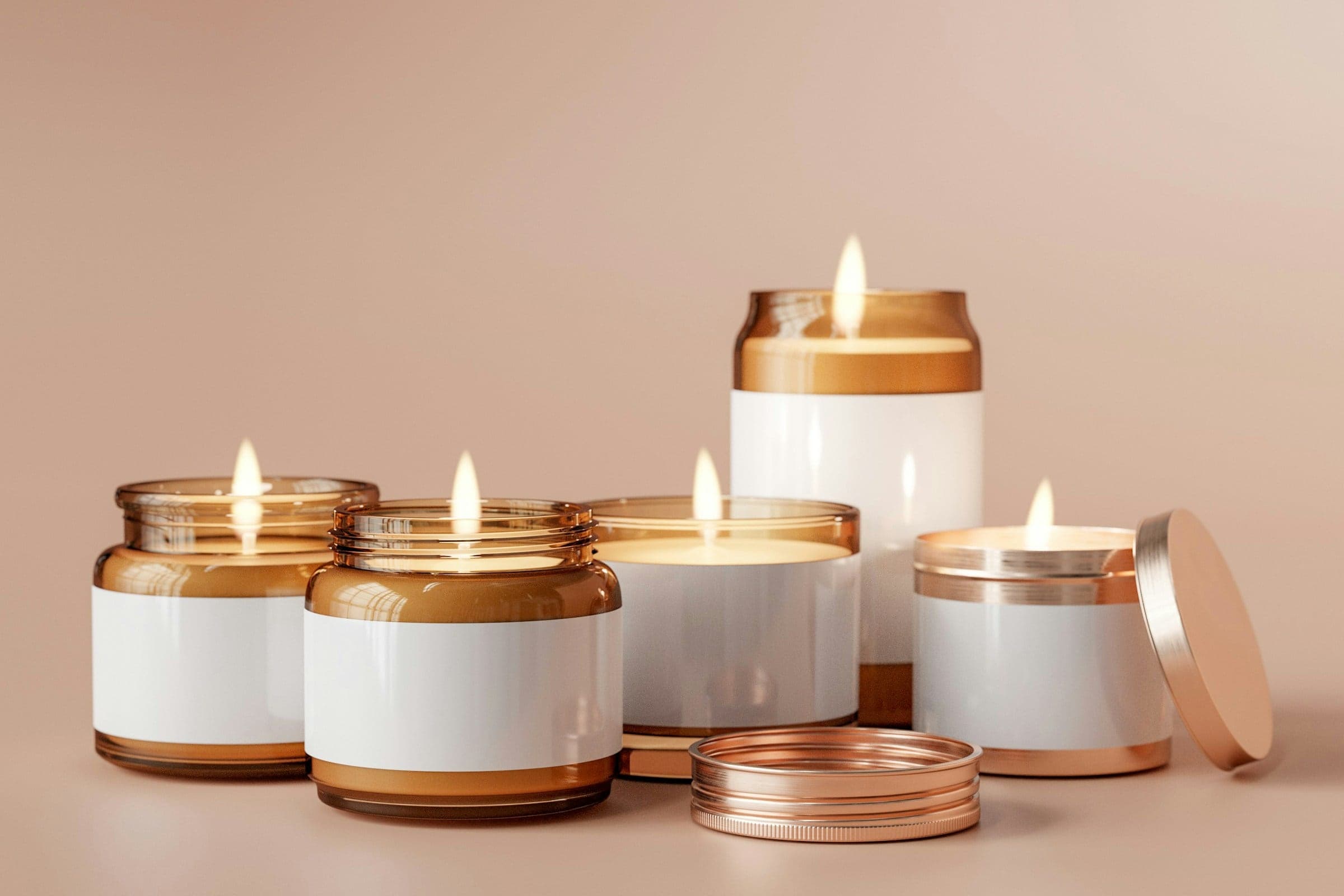
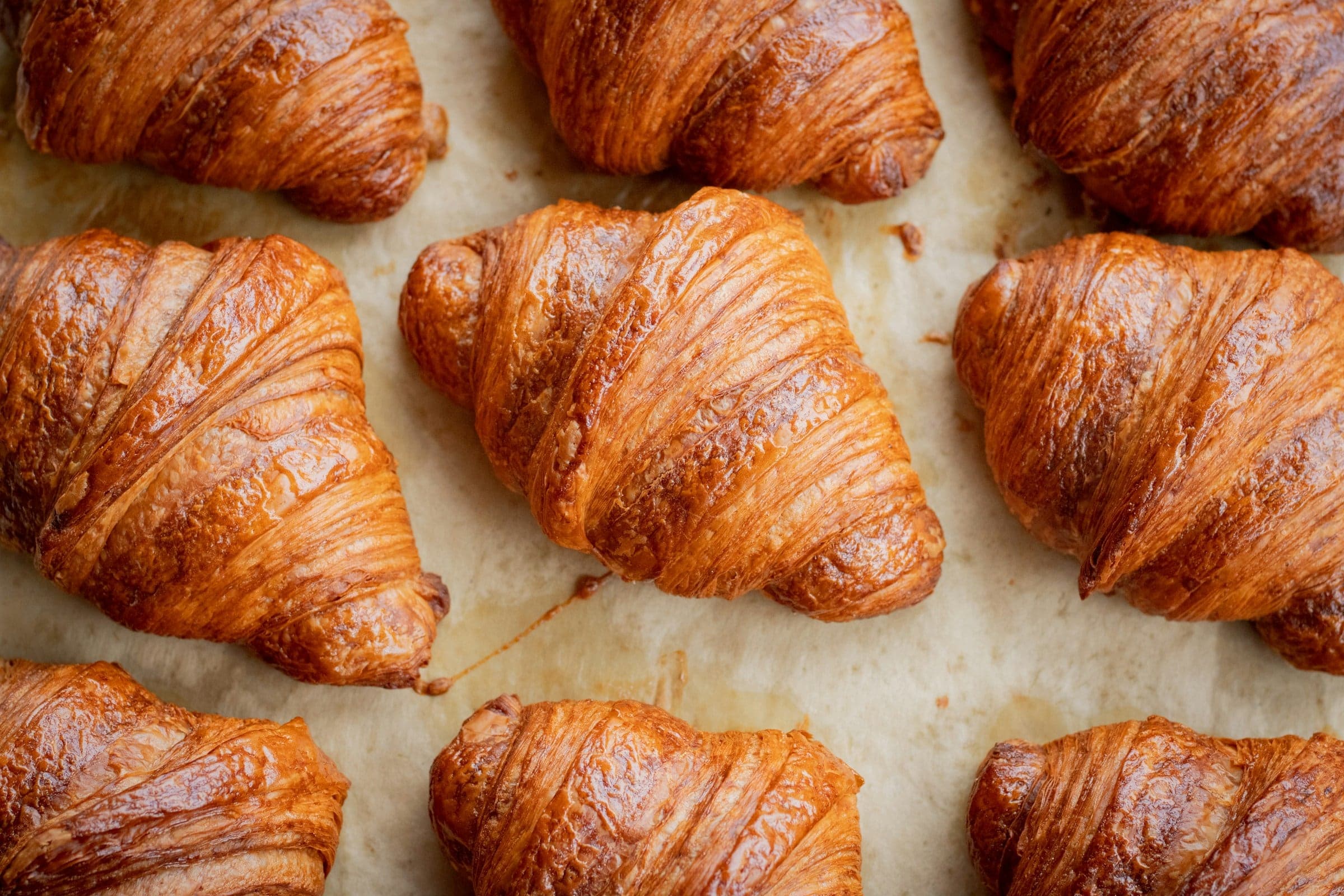
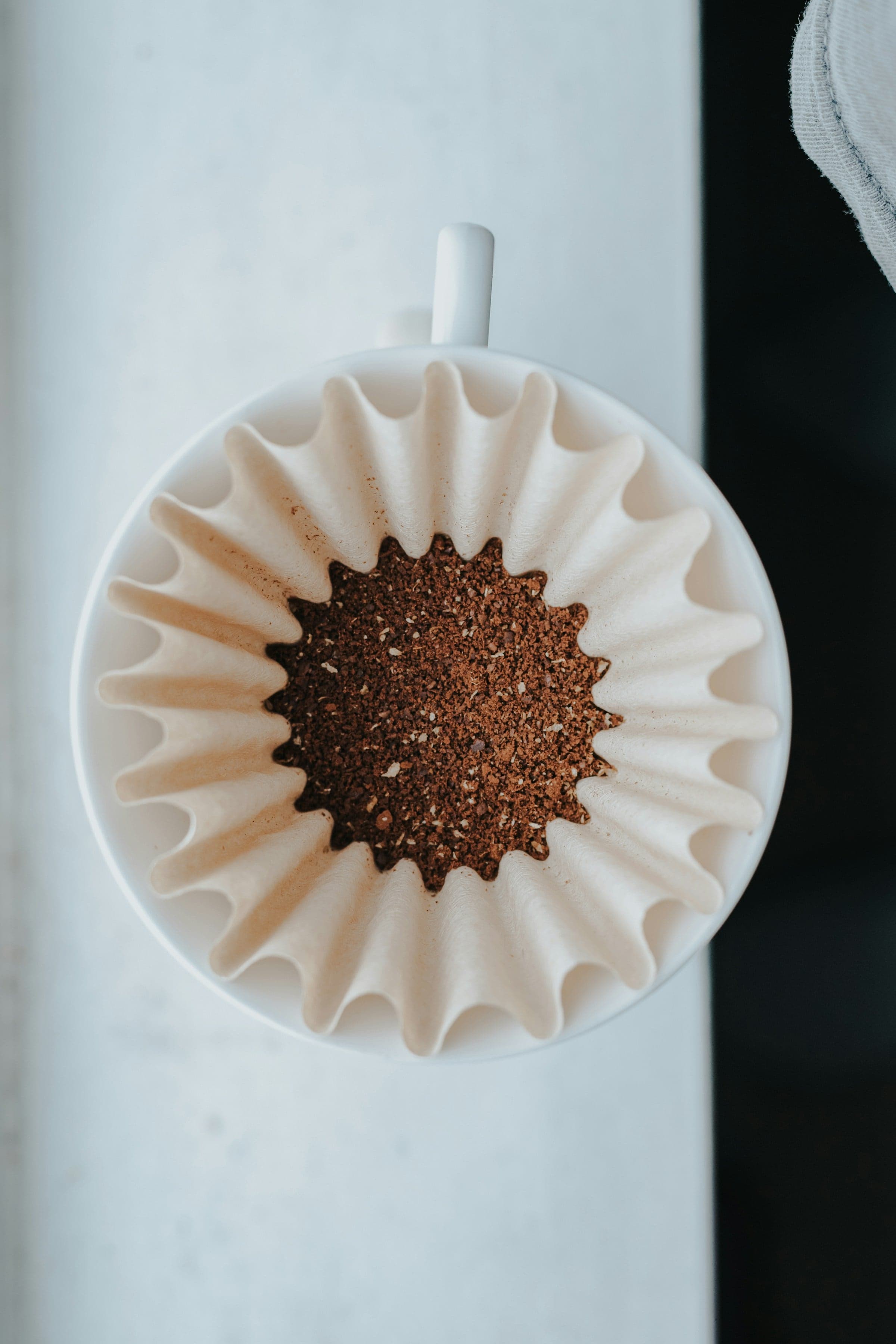
With no product type yet, Product filters opens on Suggest filters. Luxe reads up to 500 of your products (titles, product types, tags, Shopify product categories and variant options) and proposes product types, each with its filters and values. On Growth, Pro and Enterprise with AI on, AI fills the gaps (AI features). Untick what you do not want, rename product types, remove values, then Accept. Nothing is saved until you accept. Set up by hand opens the Filters page instead.
Product types and filters
A product type is the set of filters for one kind of product: candles, coffee, socks. Its rule decides which products it covers: Product type is …, Tag is … or Every product. A product belongs to the first product type whose rule it matches.
A filter is an attribute you define: roast and origin for coffee, scent family and burn time for candles, skin concern for skincare, colour and size for apparel. Open Product filters > Filters to create, edit, reorder and delete them. Every edit sits behind the save bar and saves the whole product type at once; a picker preview shows how shoppers will filter and sort.
| Filter type | Use it for |
|---|---|
| Single choice | One value from a list, such as roast (light, medium, dark) |
| Multiple choice | Several listed values per item, such as notes |
| Colour | Shades and colourways. Each value has a hex colour, shown as a chip |
| Number | A number per item with an optional unit, such as burn time in hours |
| Text | Free text per item, up to 120 characters |
Each filter can be shown as a chip in the picker (Filter), offered as a sort (Sort), filled by Auto-tag (AI fills) and made Required (items without a value are not offered in bundle sets). A Single or Multiple choice filter can read its value from a variant option, such as Size; Luxe then stores nothing for it.
Filter chips choose how shoppers use a filter: Show products with a value (the default: tapping "Vegan" keeps vegan items), Hide products with a value (tapping "No nuts" hides every item with nuts; shoppers can combine "No nuts" and "No milk"), or Both. Hiding suits allergens and diets.
Item details
Settings > Storefront > Item details adds each item's details to the set picker: allergens (in bold, and on every item as "Contains: …"), dietary preferences, ingredients and nutrition. Turn on Show allergen information and dietary preferences to use Shopify's own Category metafields for food products (Allergen information, Dietary preferences), and name your own product metafields, such as custom.ingredients, for ingredients, allergens and nutrition. Shoppers open them from a Details link on each item; without JavaScript they show under each item of the set's form.
| Limit | Value |
|---|---|
| Product types per store | 12 |
| Filters per product type | 12 |
| Filters per store | 40 |
| Values per filter | 64 |
| Filter name | 30 characters |
| Value | 40 characters |
A filter's key is set when it is created and does not change; CSV columns and the storefront use it. A value, a type change or a filter that items still use cannot be removed until those items are cleared (use the bulk action).
Describing items
The Product filters page lists your products with their image, in-use image, filter values and source (AI, Needs review, Import, Manual, Untagged, Missing image). Tabs show All, Needs review, Missing image and Untagged; search and filter narrow the list.
Open an item to edit:
- Filter values for each filter of its product type.
- Colour: an exact hex, when the item's colour differs from its filter value's.
- Product image: a close crop or colour chip, used as the swatch.
- In-use image: the item worn, applied, poured or placed, and optionally a second one (for example lit, or in the evening) that shoppers switch to on the tile.
Pick images from your Shopify files or from the product's own images. An item can describe a whole product or one variant (for example, one scent of a candle).
Bulk actions on selected rows: set a filter, set the in-use label, bulk edit several filters at once, clear a filter, or Auto-tag with AI (AI features). Bulk edits skip items waiting for review.
The in-use label
Name the in-use view in Settings > Storefront > Storefront words > In-use image label: "On model", "In room", "In the cup". Each product type, and each item, can override it. Left empty, the storefront shows "In use".
CSV import and export
Export downloads every reviewed item. Import CSV takes the same format, and lets you map your own columns:
| Column | Required | Notes |
|---|---|---|
handle | Yes | The product handle |
variant_sku | No | Describes one variant instead of the product |
| One column per filter key (or filter name) | No | A value by its value or label; Multiple choice values separated by semicolons |
swatch_image_url, in_use_image_url, in_use_alt_image_url | No | Public image URLs; Luxe uploads them to your Shopify files |
in_use_label, hex | No | The item's in-use label and exact colour |
- Review (the button reads, for example, Review 148 products) is a dry run: it reports missing handles, repeated rows, unknown values, malformed URLs and SKUs that do not match, and writes nothing. A value your filter does not list yet can be added to the filter, or imported as the closest existing value.
- Import saves in batches; a batch Shopify refuses is reported row by row while the rest stay saved.
- Items you last saved by hand keep their values unless you turn on Overwrite values set by hand.
- An empty cell leaves the stored value unchanged. Use the bulk action to clear values.
- Up to 5 MB and 2,000 rows per file.
- Values that begin with
=,+,-or@are exported with a leading'so spreadsheets do not run them; import removes it.
Where the data lives
Luxe stores your product types and filters in its database and publishes each item's values and images to product (or variant) metafields owned by Luxe, which the storefront reads. You can see them in the Shopify admin; edit them in Luxe so both stay in step. Uninstalling Luxe removes these metafields.